Shadow Map
Related Topics: Frame Buffer Object (FBO), Matrix Class
Download: shadow.zip
- Overview
- Create Shadow Map
- Transform to Light Space
- Compare to Shadow Map
- Shadow Acne
- GLSL Uniform: sampler2DShadow
- Soften Shadow with Blur Filter
- Example: Simple Shadow Mapping
- Example: WebGL Shadow Map Demos
Overview
Shadow mapping technique is rendering shadows by comparing a pixel to the depth buffer from the light point's view. If the pixel's depth (z) value is greater than the value from the depth buffer, then the pixel is in the shadow, which means the pixel is occluded by other pixels (not visible). This depth buffer from the light view is called shadow map.
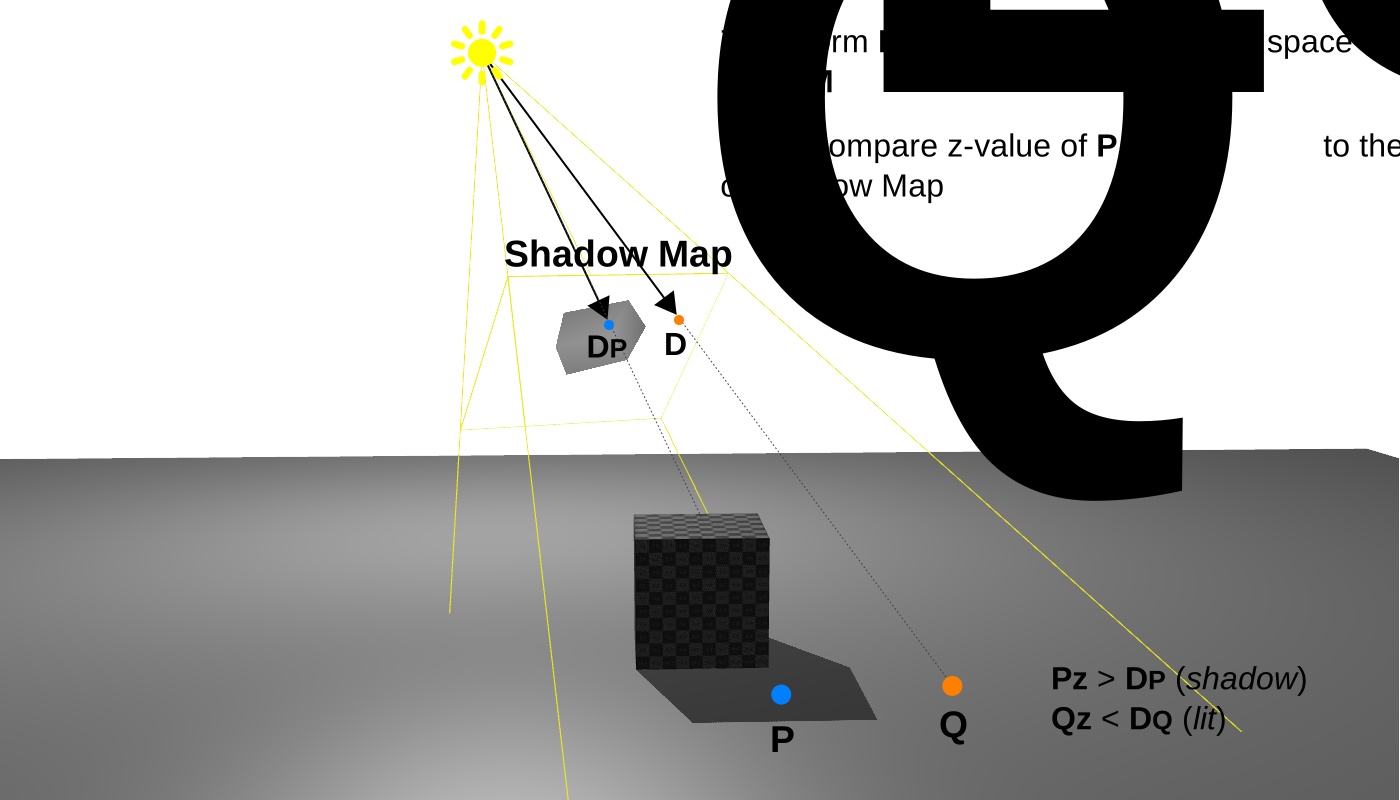
Before comparing every point to the shadow map, we need to create the shadow map itself in advance, and to transform all points to the light space where it is projected from the light position.
The steps to draw shadows are;
- Create the shadow map from the light position
- Transform all points to Light Space
- Compare all points with the shadow map
Create Shadow Map
The first step is to draw the scene from the light point of view to generate the shadow map. Therefore, specify the view and projection matrices from the light point, instead of from the camera. We need to render the depth buffer as a texture object, so we can reference the shadow map from the GLSL shader during the second drawing phase.
Create a depth texture with GL_DEPTH24_STENCIL8 format and GL_UNSIGNED_INT_24_8 type, and attach it to the Framebuffer object (FBO) to render to the texture directly. Also, set the border color to 1.0 to clamp the max value when a pixel is outside of the shadow map. Or, use FrameBuffer helper class to render to the depth buffer. It creates a texture object in it for the depth buffer attachment.
// create depth texture
GLuint depthId;
glGenTextures(1, &depthId);
glBindTexture(GL_TEXTURE_2D, depthId);
glTexParameterf(GL_TEXTURE_2D, GL_TEXTURE_MAG_FILTER, GL_LINEAR);
glTexParameterf(GL_TEXTURE_2D, GL_TEXTURE_MIN_FILTER, GL_LINEAR);
glTexParameteri(GL_TEXTURE_2D, GL_TEXTURE_WRAP_S, GL_CLAMP_TO_BORDER);
glTexParameteri(GL_TEXTURE_2D, GL_TEXTURE_WRAP_T, GL_CLAMP_TO_BORDER);
float borderColor[] = { 1.0f, 1.0f, 1.0f, 1.0f };   // max depth value
glTexParameterfv(GL_TEXTURE_2D, GL_TEXTURE_BORDER_COLOR, borderColor);
glTexImage2D(GL_TEXTURE_2D,         // target
             0,                     // mipmap level
             GL_DEPTH24_STENCIL8,   // internal format
             width,                 // width
             height,                // height
             0,                     // border
             GL_DEPTH_STENCIL,      // format
             GL_UNSIGNED_INT_24_8,  // type
             0);                    // data

// create FBO
GLuint depthId;
glGenFramebuffers(1, &fboId);
glBindFramebuffer(GL_FRAMEBUFFER, fboId);

// attach depth texture to FBO
glFramebufferTexture2D(GL_FRAMEBUFFER,              // target
                       GL_DEPTH_STENCIL_ATTACHMENT, // attachment point
                       GL_TEXTURE_2D,               // texture target
                       depthId,                     // texture ID
                       0);                          // mipmap level

// unbind
glBindTexture(GL_TEXTURE_2D, 0);
glBindFramebuffer(GL_FRAMEBUFFER, 0);
After the FBO for the shadow map is created, define the view and projection matrices to tranform the scene to the light space. Use the camera's lookAt() function for the view matrix, viewing from the light point to the origin, and define the light's projection matrix with setFrustum() or setOrthoFrustum(), which can include all objects in the scene. Use a perspective projection for the positional light, and an orthographic projection for the directional light.
// set view matrix from light position
// see lookAt() code
Vector3 from = Vector3(lightPos[0], lightPos[1], lightPos[2]);
Vector3 to = Vector3(0, 0, 0);
Vector3 up = Vector3(0, 1, 0);
Matrix4 matrixLightView = lookAt(from, to, up);

// set light projection matrix with 6 params
// see setFrustum() code
Matrix4 matrixLightProjection = setFrustum(l, r, b, t, n, f);
Finally, we render the scene from the light position to the framebuffer object. Since we only need to draw to the depth buffer, we can disable drawing color buffer, and transfer only vertex position attribute to the GLSL shader. No need vertex normals, texture coordinates, and texture maps. Here is an example of OpenGL drawing calls and GLSL implementations.
...
// bind FBO
glBindFramebuffer(GL_FRAMEBUFFER, fboId);

// disable color buffer
glDrawBuffer(GL_NONE);
glReadBuffer(GL_NONE);

glViewport(0, 0, width, height);
glClear(GL_DEPTH_BUFFER_BIT);

// bind GLSL program
glUseProgram(progId);

// pass Model-View-Proj matrix to shader
Matrix4 matrixMVC = matrixLightProjection * matrixLightView;
glUniformMatrix4fv(matrixModelViewProjection, 1, false, matrixMVP.get());

// draw scene to FBO (back faces only)
// pass only vertex positions to GLSL shader
glCullFace(GL_FRONT);
drawSceneToShadowMap();
glCullFace(GL_BACK);

// re-enable color buffer
glDrawBuffer(GL_BACK);
glReadBuffer(GL_BACK);

// unbind FBO
glBindFramebuffer(GL_FRAMEBUFFER, 0);
...
// vertex shader to draw depth info
#version 330

// uniforms
uniform mat4 matrixModelViewProjection;

// vertex attribs (input)
layout(location=0) in vec3 vertexPosition;

void main()
{
    gl_Position = matrixModelViewProjection * vec4(vertexPosition, 1.0);
}
// fragment shader to draw depth info
#version 330

void main()
{
    // empty body because we don't need to draw color buffer
}
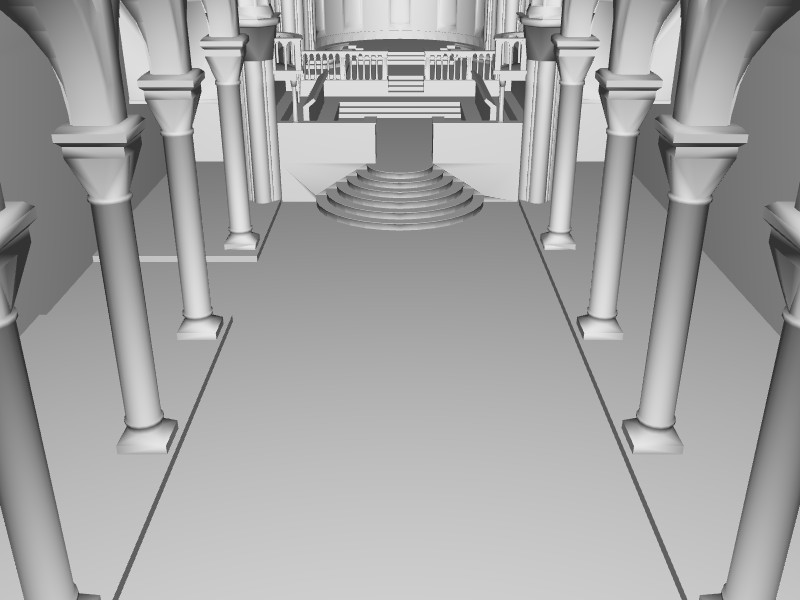
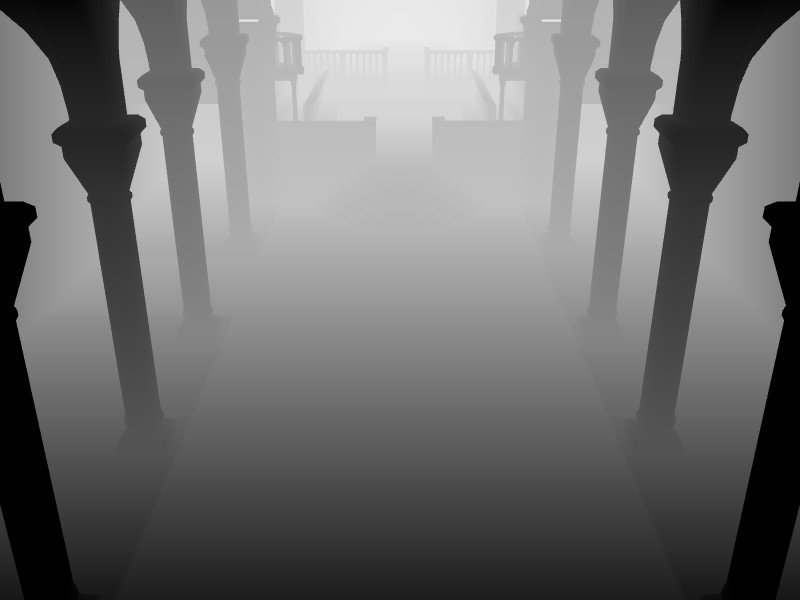
The following is an example of rendering from the light point. The left image is the color buffer, and the right image is the depth buffer (shadow map). The values in the depth buffer are normalized to [0, 1]; the closest point from the light source is 0, and the farthest point will be 1. Also, note that we enable back-facing rendering by culling front faces. It is to avoid visual artifact, shadow acne effects. We will discuss it later.
Transform to Light Space
After the shadow map is created in the first-pass rendering, we draw the scene once again applying the shadow mapping algorithm with the shadow map. In shadow mapping algorithm, every vertex must be transformed to the same domain where the values in the shadow map are stored, so it can be compared to the value in the shadow map. This space is called Light Space. This section describes how to transform a vertex from the world space to the light space during the second-pass rendering.
We are still using matrixLightView and matrixLightProjection matrice to transform vertices to the light space. However, matrixLightProjection produces the NDC result range of [-1, 1], but we need the normalized coordinates range of [0, 1]. The texture (s,t) coordinates and the depth values are all within [0,1]. Therefore, we multiply an additional matrix, matrixLightNorm to normalize the result in [0, 1].
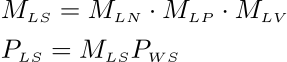
...

// transform world space to light view (eye) space
Matrix4 matrixLightView;
matrixLightView = lookAt(lightPosition, target, up);

// transform light view (eye) space to light NDC/clip space
Matrix4 matrixLightProjection;
matrixLightProjection = setFrustum(l, r, b, t, n, f);

// normalize NDC from [-1,1] to [0,1]
// v' = v / 2 + 0.5
Matrix4 matrixLightNorm;
matrixLightNorm = Matrix4(0.5, 0,   0,   0,     // 1st column
                          0,   0.5, 0,   0,     // 2nd column
                          0,   0,   0.5, 0,     // 3rd column
                          0.5, 0.5, 0.5, 1);    // 4th column

// final matrix to transform a vertex from world space to light space
Matrix4 matrixLightSpace;
matrixLightSpace = matrixLightNorm * matrixLightProjection * matrixLightView;
...
During the second-pass drawing, pass the matrixLightSpace matrix as a uniform to the vertex shader in order to transform each vertex from the world space to the light space. matrixModel matrix is used to transform a geometry from object space to world space.
...

// bind GLSL program
glUseProgram(progId);
...

// pass matrices to shader
glUniformMatrix4fv(matrixModel, 1, false, matrixModel.get());
glUniformMatrix4fv(matrixLightSpace, 1, false, matrixLightSpace.get());
...

// bind and pass shadow map to shader
glActiveTexture(GL_TEXTURE1);
glBindTexture(GL_TEXTURE_2D, depthId);
glUniform1i(mapShadow, 1);          // shadow map = 1
...

// draw scene with shadow mapping
drawScene();
...
// vertex shader to transform vertex to light space
...

// uniforms
uniform mat4 matrixModel;
uniform mat4 matrixLightSpace;
...

// input attribs
layout(location=0) in vec3 vertexPosition;
...

// output varyings
out vec4 lsPosition;    // vertex in light space
...

void main()
{
    ...

    // transform vertex from object space to world space
    vec4 wsPosition = matrixModel * vec4(vertexPosition, 1.0);

    // transform vertex from world space to light space
    // and, pass it to fragment shader
    lsPosition = matrixLightSpace * wsPosition;
}
Compare to Shadow Map
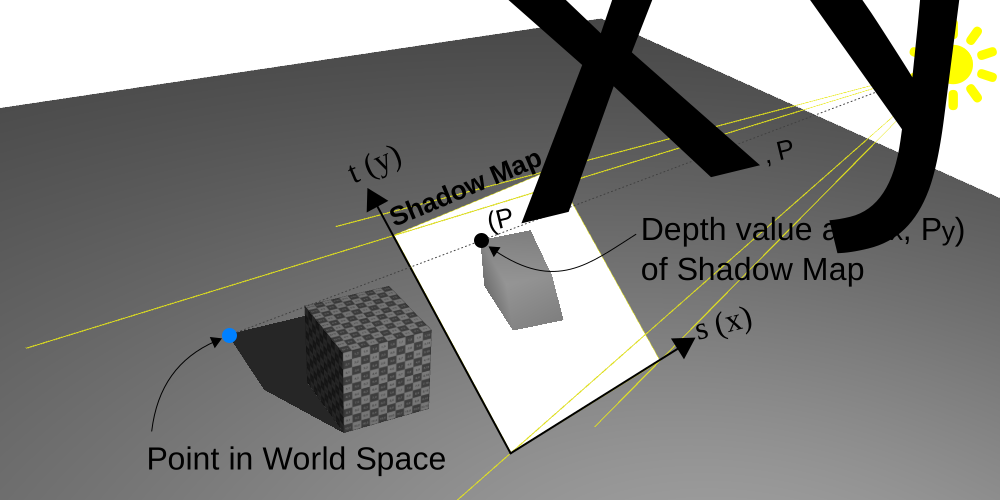
This section explains the comparison logic to determine if it is in shadow or light during the second-pass rendering. After transforming the vertex position, P to the light space in the vertex shader, we perform the perspective division (dividing by w) and the comparison logic in the fragment shader. The (x, y) coordinates of the P becomes the (s, t) of the shadow map, which is the exact position viewing from the light source.
And, the z coodinate of P becomes the depth value from the light point of view. Because the shadow map contains the closest depth values from the light point of view, we compare Pz to the depth value at the (Px, Py) coordinate of the shadow map. If Pz is greater than the depth value in the shadow map, it is behind other point. It means P is in shadow. If Pz is less than or equal to the depth value, it is front of other point, or it is in light.
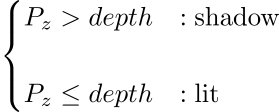
The GLSL code snippet for shadow mapping algorithm looks like this in the fragment shader. computeShadowFactor() will compare each point in the screen with the shadow map. If it is greater than the shadow map then it returns appropriate shadow factor, for example, 0.5. If it is less than or equal to the shadow map, it returns 0 (not shadow).
Then, blend the diffuse and specular color with the shadow factor. Or, do not apply the diffuse and specular components if it is in the shadow.
// fragment shader to draw shadow

// uniforms
uniform sampler2D mapShadow;
...

// input varyings
in vec4 lsPosition;    // vertex in light space
...

// output
out vec4 fragColor;
...

// function to return shadow factor if point is in shadow
// otherwise, return 0 (lit)
const float SHADOW_ALPHA = 0.5;
float computeShadowFactor(vec3 point)
{
    // get depth value from shadow map at (x,y) of point
    float depth = texture(mapShadow, point.xy).r;

    // shadow mapping test
    if(point.z > depth)
        return SHADOW_ALPHA;    // in shadow
    else
        return 0.0;             // in light
}


void main()
{
    ...

    // perspective division from 4D to 3D
    vec3 shadowCoord = lsPosition.xyz / lsPosition.w;

    // clamp any outbound pixel to [0, 1]
    shadowCoord = clamp(shadowCoord, 0.0, 1.0);

    // test shadow
    float shadowFactor = computeShadowFactor(shadowCoord);

    // start with ambient color
    vec3 color = materialAmbient;

    // add diffuse
    color += (1.0 - shadowFactor) * materialDiffuse;

    // add specular
    color += pow(1.0 - shadowFactor, 5.0) * materialSpecular ...;
    ...

    fragColor = vec4(color, 1.0);
}
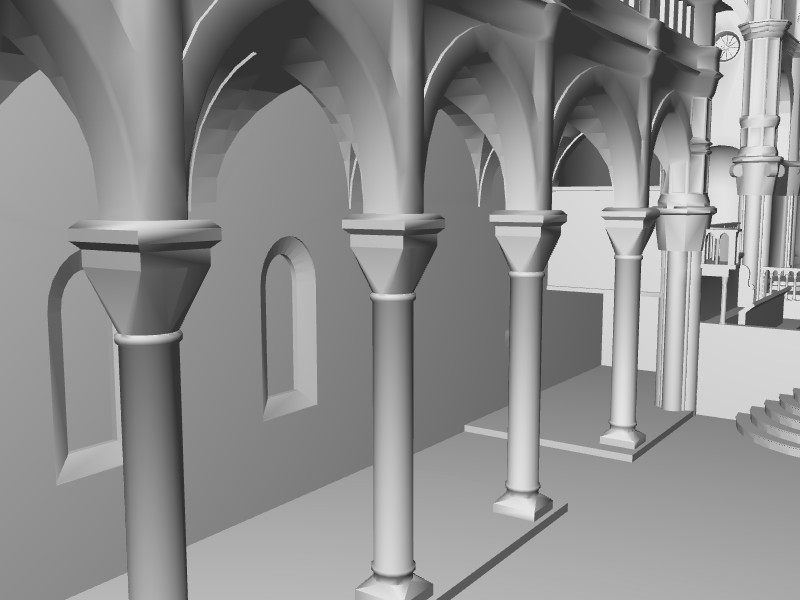
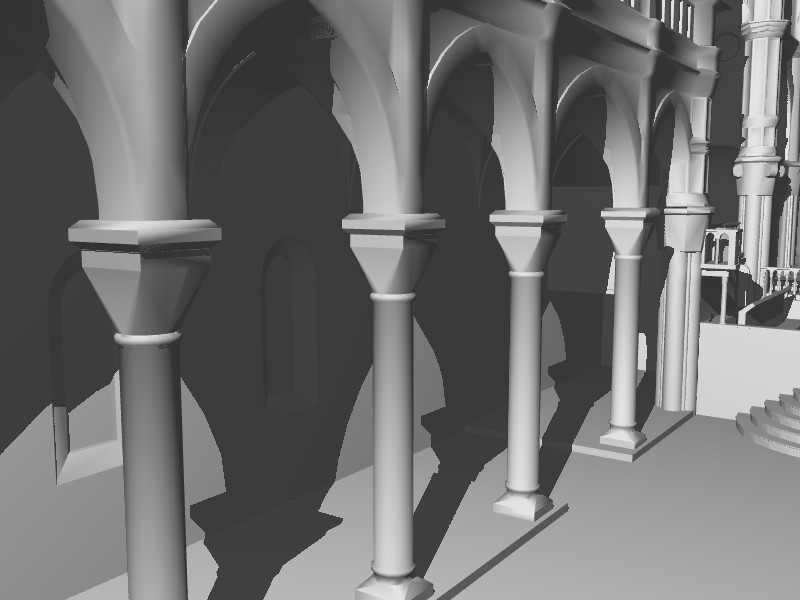
This is an example of rendering with and without shadow. Shadows provide 3D cues to enhance depth perception and realism.
Shadow Acne
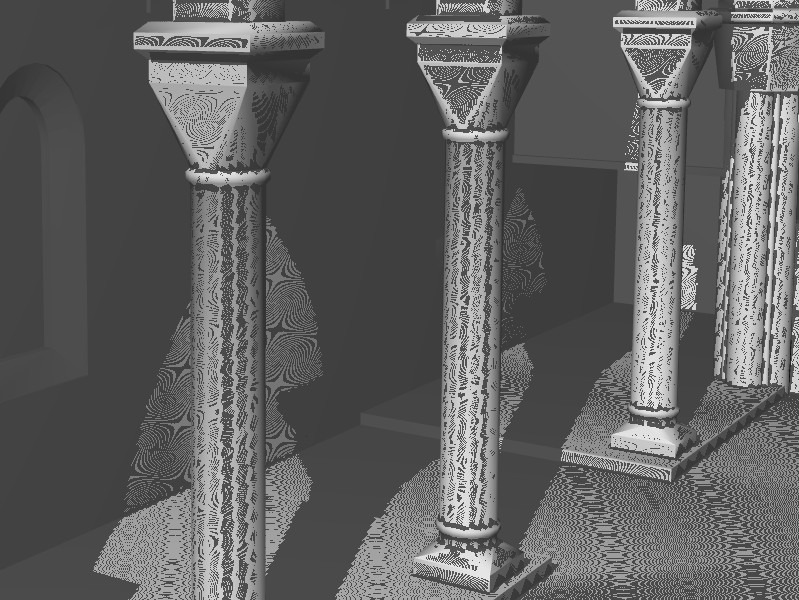
The shadow acne is a visual artifact, the stripe patterns on the lit surfaces where Pz is equal to the depth value in the shadow map. It is because the shadow map stores the depth values in a discret manner, pixel by pixel. There are quantization error between 2 pixels in the shadow map.
One solution is creating the shadow map with front-face culling. Because the shadow map contains back-face values, the depth value of the front face is less than the back faces. This solution works in most cases, except a very thin geometry. The example in this page uses the back-facing shadow map.
The other solution to fix the shadow acne is applying a small offset along the Z axis. So, Pz at the front faces is always less than the depth value in the shadow map. However, the shadow looks float and shifted if the offset value is getting bigger.
Shadow mapping comparison logic using the offset looks like this.
// fragment shader with shadow offset
...

// uniforms
uniform sampler2D mapShadow;
uniform float shadowOffset;
...

// function to return shadow factor if point is in shadow
// otherwise, return 0 (lit)
const float SHADOW_ALPHA = 0.5;
float computeShadowFactor(vec3 point)
{
    // get depth value from shadow map at (x,y) of point
    float depth = texture(mapShadow, point.xy).r;

    // shadow mapping test
    if((point.z - shadowOffset) > depth)
        return SHADOW_ALPHA;    // in shadow
    else
        return 0.0;             // in light
}
...
GLSL Uniform: sampler2DShadow
OpenGL version 3.0 (GLSL v1.30) introduces sampler2DShadow sampler type in GLSL, and GL_TEXTURE_COMPARE_MODE and GL_TEXTURE_COMPARE_FUNC texture parameters. It allows to simplify the shadow mapping comparison logic. Plus, it also performs the hardware accelerated PCF (Percentage Closer Filtering) with no cost, which softens the shadow edges by averaging 4 neighbour pixels.
We pass the shadow map as sampler2DShadow type, instead of sampler2D, and define the comparison function and mode for the depth texture. The comparson function is same as before; if the reference value, Pz is greater than the shadow map, then it returns 1 (shadow). Otherwise, returns 0 (lit).
texture() with sampler2DShadow takes 3-component coordinate (x,y,z) and it directly returns the result of the comparison test, instead of the actual depth value. (No need computeShadowFactor() function)
...

// define texture comparison function
// if ref is greater than shadow map, return 1
glBindTexture(GL_TEXTURE_2D, depthId);
glTexParameteri(GL_TEXTURE_2D,
                GL_TEXTURE_COMPARE_MODE,
                GL_COMPARE_REF_TO_TEXTURE);
glTexParameteri(GL_TEXTURE_2D,
                GL_TEXTURE_COMPARE_FUNC,
                GL_GREATER);
...

// bind GLSL program
glUseProgram(progId);
...

// bind and pass shadow map as sampler2DShadow
glActiveTexture(GL_TEXTURE1);
glBindTexture(GL_TEXTURE_2D, depthId);
glUniform1i(mapShadow, 1);
...

// draw scene with shadow mapping
drawScene();
...
// fragment shader with sampler2DShadow and PCF
...

// uniforms
uniform sampler2DShadow mapShadow;
...

void main()
{
    ...

    // perspective division from 4D to 3D
    vec3 shadowCoord = lsPosition.xyz / lsPosition.w;

    // clamp any outbound pixel to [0, 1]
    shadowCoord = clamp(shadowCoord, 0.0, 1.0);

    // texture() performs comparison test directly
    // it also applys hardware PCF to blur shadow
    float shadowFactor = texture(mapShadow, shadowCoord);
    ...
}
The PCF performed by sampler2DShadow is hardware accelerated, so it is really fast. However, it only samples 4 neighbour texels to smooth the edges of the shadow. It still looks zaggy if the resolution of the shadow map is low. See the next section to soften the shadow using NxN box filter.
The C++ example uses both sampler2D and sampler2DShadow types to draw shadows. Please see shaders.h in the src directory for more detail implementation.
Soften Shadow with Blur Filter (PCF)
Another visual artifact in shadow mapping is shadow aliasing, which is showing zaggy or pixelated shadow. It is because a single shadow pixel is applied across a large surface.
One solution is PCF (Percentage Closer Filtering) by sampling multiple pixels and averaging the shadow factor. sampler2DShadows only samples 4 surrounding pixels (2x2) from the shadow map, so the result may not smooth enough. You can smooth the shadow using a NxN box filter by yourself.
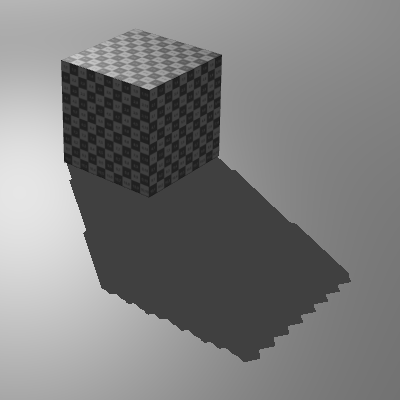
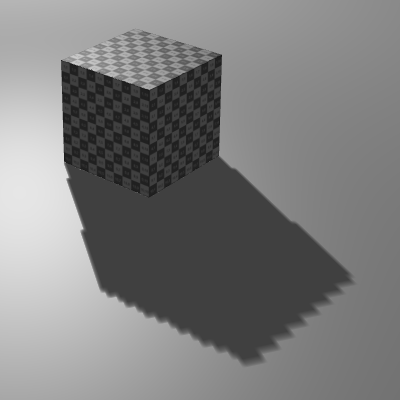
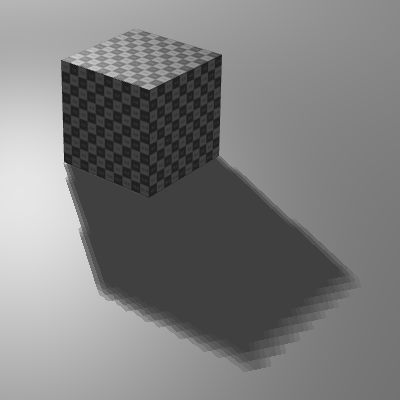
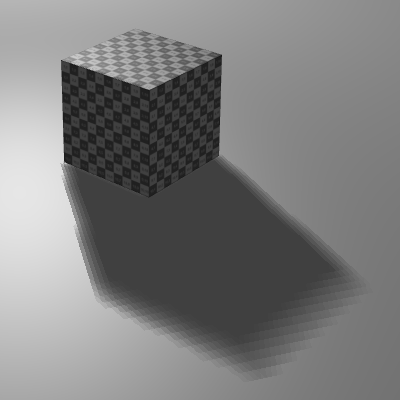
computeShadowFactorBlur() in the fragment shader using a 5x5 box filter (total 25 samples) looks like this. See the detail implementation in the example.
// fragment shader with NxN box filter
...

// uniforms
uniform sampler2D mapShadow;
...

const int HALF_KERNEL = 2;              // half range of kernel
const int KERNEL_COUNT = 25;            // total number of samples in kernel
const float SPREAD = 1.0;               // texel sampling radius

float computeShadowFactorBlur(vec3 shadowCoord)
{
    float depth;
    vec2 offset;
    vec2 mapSize = textureSize(mapShadow, 0);
    float sum = 0.0;
    for(int i = -HALF_KERNEL; i <= HALF_KERNEL; ++i)
    {
        for(int j = -HALF_KERNEL; j <= HALF_KERNEL; ++j)
        {
            offset = vec2(float(i), float(j)) * SPREAD / mapSize;
            depth = texture2D(map1, shadowCoord.xy + offset).r;
            // accumulate if it is in shadow
            if(shadowCoord.z > depth)
                sum += 1.0;
        }
    }
    return SHADOW_FACTOR * (sum / float(KERNEL_COUNT));
}


void main()
{
    ...

    // perspective division from 4D to 3D
    vec3 shadowCoord = lsPosition.xyz / lsPosition.w;

    // clamp any outbound pixel to [0, 1]
    shadowCoord = clamp(shadowCoord, 0.0, 1.0);

    // blur shadow using box filter
    float shadowFactor = computeShadowFactorBlur(shadowCoord);
    ...
}
Example: Simple Shadow Mapping
Download:
shadow.zip (Updated 2026-10-21)
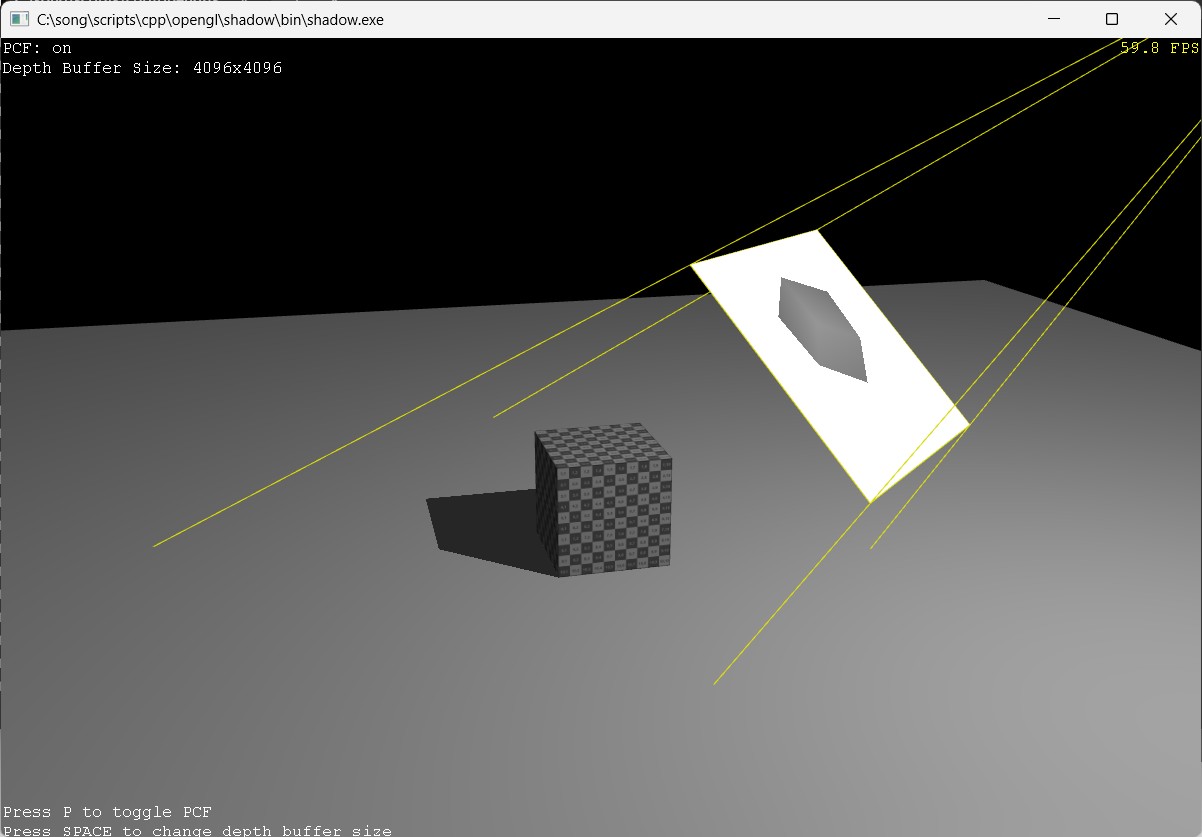
This C++ example draws a cube on the floor with shadow using sampler2DShadow uniform and PCF. Press P to toggle PCF on/off, and SPACE key to resize the shadow map from 128x128 to 4096x4096.
Example: WebGL Shadow Mapping Demos
 Fullscreen Demo: test_shadow1.html
 GitHub Repo: test_shadow1.html
This WebGL demo is drawing a cube with shadow. It softens the shadow with 5x5 box filter. gles_floorShadow.frag defines various methods to compute shadow factors.
- computeShadowFactor(): Simple shadow mapping
- computeShadowFactorBlur(): Smooth shadows with NxN box filter
- computeShadowFactorNoise(): Compute shadows using screen-space random noise
- computeShadowFactorNoiseBlur(): Smooth shadows using screen-space noise and NxN box filter
Fullscreen Demo: test_shadow2.html
GitHub Repo: test_shadow2.html
The second demo draws multiple objects with self-shadowing. Please see setLightProjection() to change the matrix for the shadow map using Matrix4 class.

